
This guide shows you how to set up a secure and stable connection between your website and Microsoft 365 (Outlook) for sending emails from WordPress. The method applies regardless of which SMTP plugin you use – for example FluentSMTP, WP Mail SMTP, Post SMTP, or others.
Objective: Configure the site so that all outgoing emails are sent via the chosen email provider (SMTP or API) instead of the default PHP mail(), for better delivery rates and fewer spam issues.
1. Preparations
Before you start you must have:
- Administrator access to the WordPress website.
- An active Microsoft 365 account (business or personal).
- Access to Azure Portal to create app registration.
- A selected SMTP plugin installed and activated in WordPress.
Tip: Keep your browser open in two tabs – one for the WordPress plugin and one for Azure Portal.
2. Create a new app registration in Azure
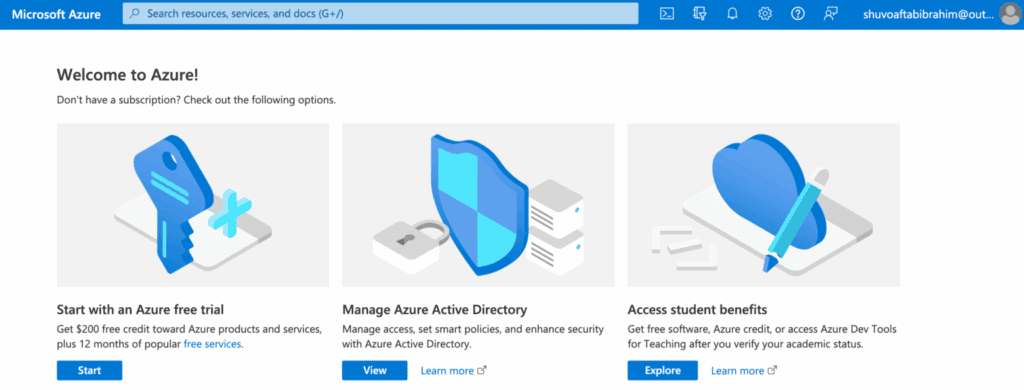
- Go to https://portal.azure.com.
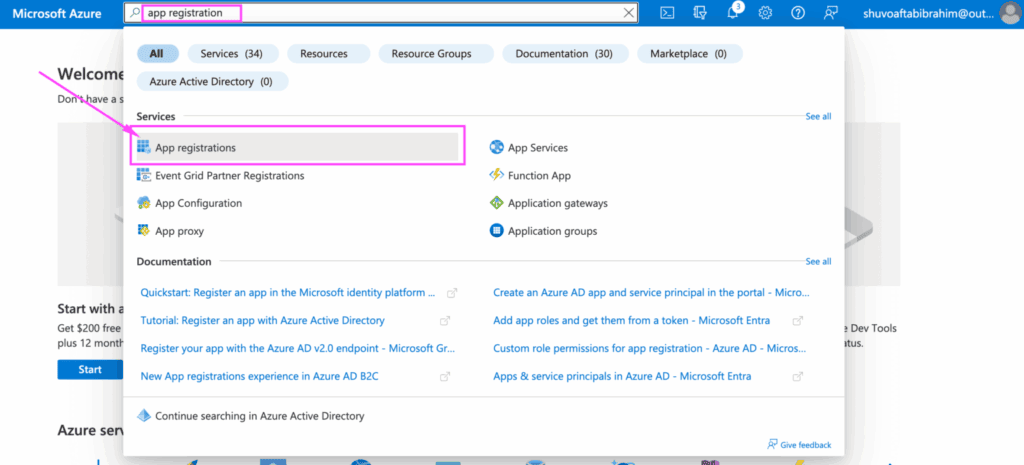
- Select Azure Active Directory → App registrations → New registration.
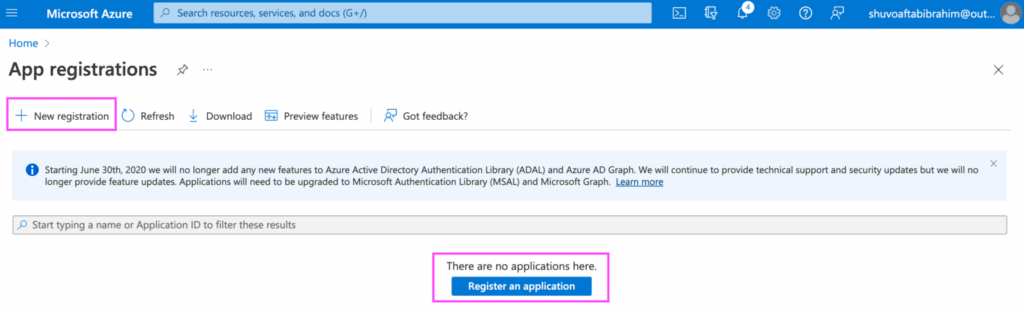
- Give the app a name, e.g.
WordPress SMTP.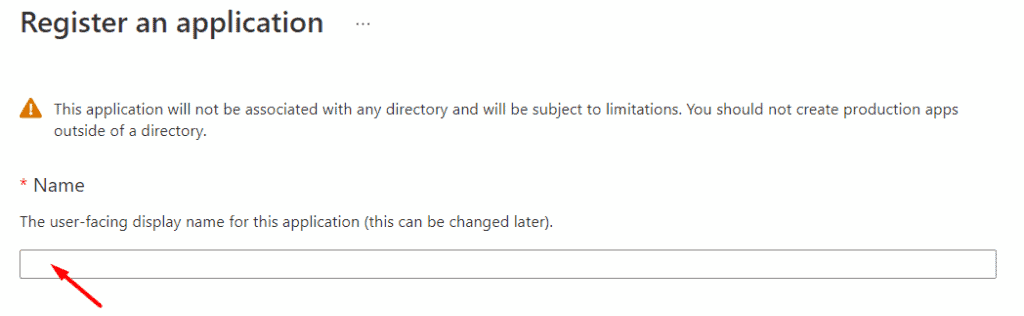
- Under Supported account types, select:
➤ Accounts in any organizational directory and personal Microsoft accounts. - Under Redirect URI (optional), select Web and enter:
https://example.com/wp-admin/options-general.php?page=wp-mail-smtp
(Replaceexample.comwith your own domain name)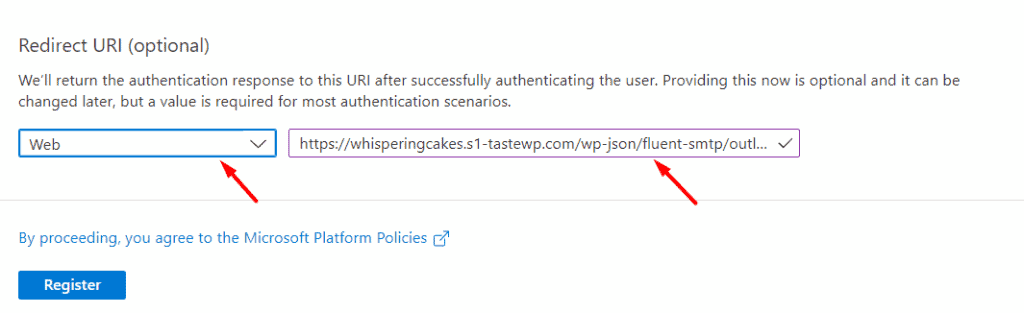
- Click Register.
3. Create client ID and secret
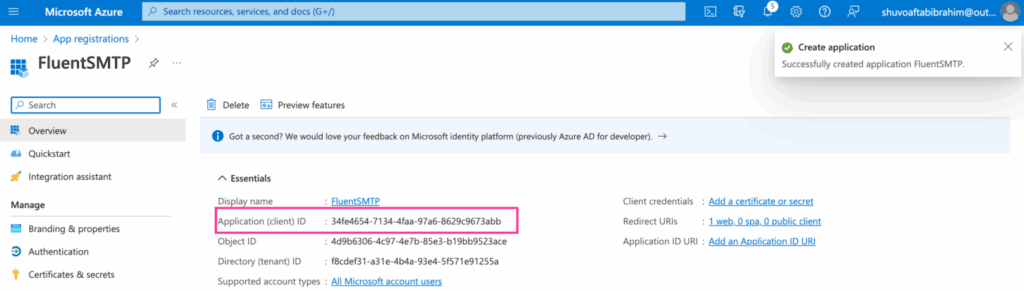
After the app has been created, copy the following:
- Application (client) ID
- Directory (tenant) ID
Go to the menu Certificates & secrets → New client secret.
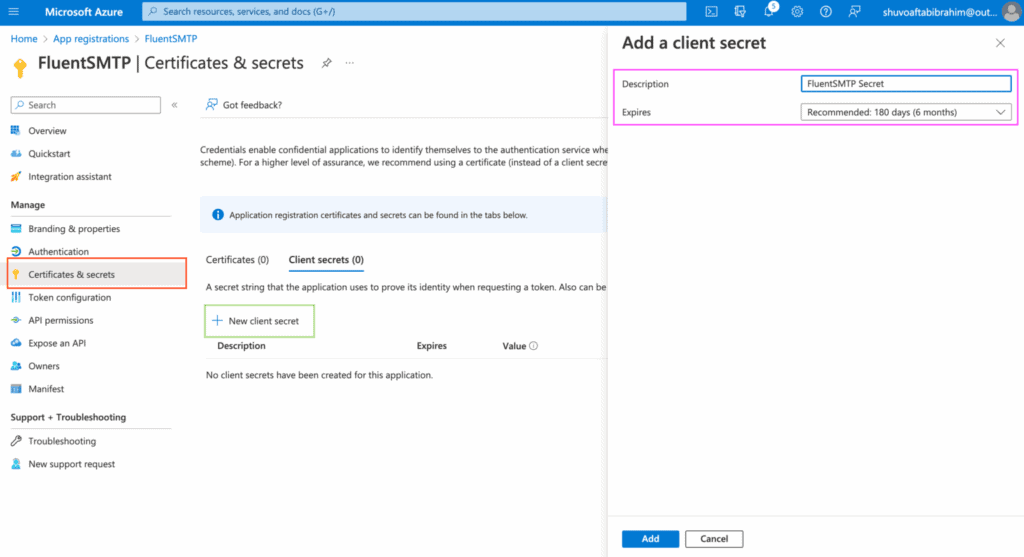
Give it a name (e.g. SMTP integration) and select the expiration time.
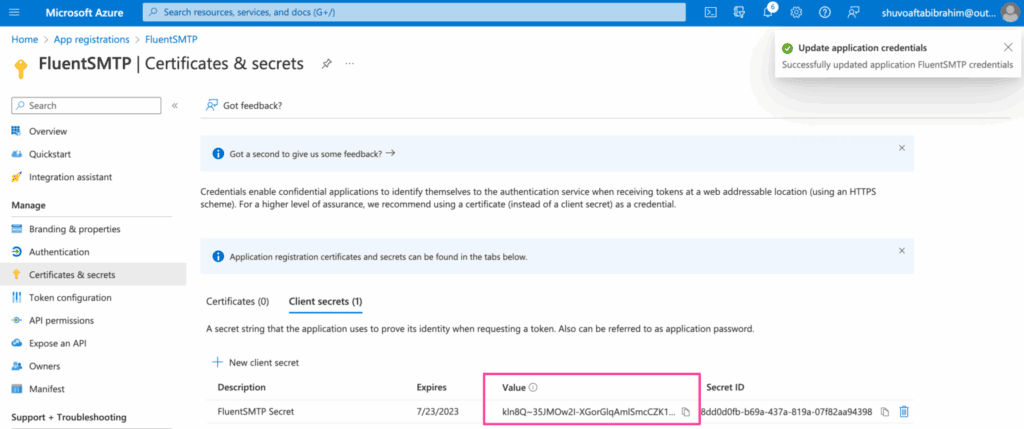
Click Add and copy the generated secret value.
⚠️ It only appears once – copy it before you navigate away!
4. Add API permissions
In the app, go to API Permissions → Add a permission.
Select Microsoft Graph → Delegated permissions.
Search for and add these permissions:
Mail.Sendoffline_accessopenidSMTP.Send(if available)
Click Add permissions.
Click Grant admin consent to activate the permissions.
5. Add the Redirect URI (if not done previously) under Authentication in the Azure app:
- Click Add a platform → Web.
- Add the same Redirect URI that the plugin displays.
- For example:
https://dittdomene.no/wp-admin/options-general.php?page=fluent-smtp - Activate “Access tokens” and “ID tokens”.
Click Save.
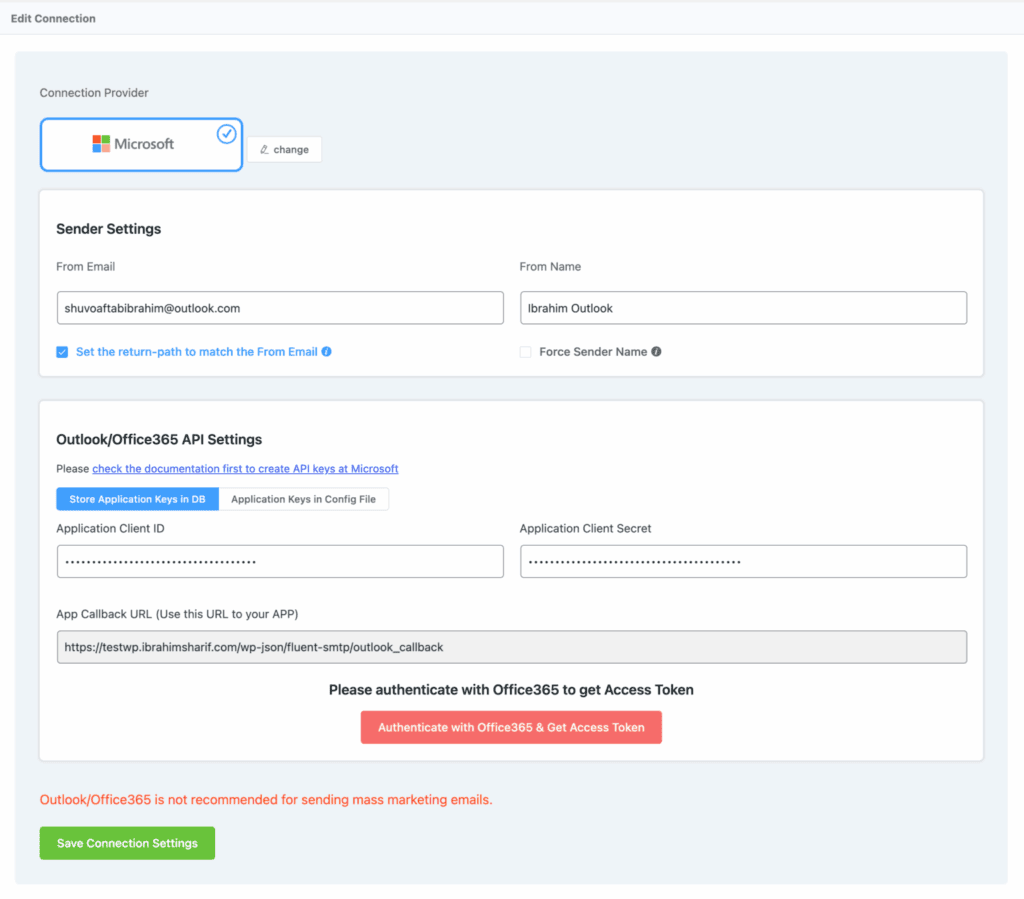
6. Set up the connection in WordPress
- Go to WordPress dashboard → Settings > SMTP plugin name > Settings.
- Select Microsoft 365/Outlook as your provider.
- Paste:
- Tenant ID
- Customer ID
- Customer Secret
- Redirect URI (same as in Azure)
- Click Save settings and then Authenticate or Connect to Microsoft.
- Log in with your Microsoft account and authorize access.
7. Test that email works
- Go to Send test email in the plugin.
- Send a test to an address you control.
- Check that the email arrives without errors or spam tags.
- If you get an error message, check:
- That all IDs and secrets are correct.
- That the API permissions are approved.
- That you use the correct redirect URI and account.
8. Troubleshooting and maintenance
- The token given during authentication may expire after 6-12 months.
If email suddenly stops working, log in again via the plugin. - Don’t delete the secret in Azure until you’ve added a new one.
- Update WordPress and the SMTP plugin regularly.
- Ensure the correct SPF, DKIM and DMARC setup in DNS for the domain.
In summary
You have now created a secure link between Microsoft 365 and WordPress for sending emails.
This setup works with all modern SMTP plugins, and provides:
- Better delivery rate
- Less chance of emails ending up in spam
- More secure authentication via Microsoft Graph / OAuth 2.0